
• How to guide
  • Gadgets
  • Apps
    • IOS Apps
    • Android Apps
    • Google Chrome Apps
  • WordPress
  • Make Money online
  • About
  • Start a Blog
Skip to content
Technic Mantra

Mark all unread emails as read in gmail

By Aditya | In Categories How to guide, Technology | Last Updated: July 3, 2026July 3, 2026

Mark all unread emails as read in gmail

Many of us gets hundreds of emails everyday. These reach to thousands if you don’t access you emails for sometime or read them on other forwarding email account. This happens to most of us who use 2 or more email accounts and have forward enabled on all to single account.
We can select up to 100 unread emails and mark them as read. But what if they reach to 1000+ or even 7953 like mine. It would be very tedious job to select 100 at a time and mark them as read. It may take hours of your valuable time and you might end up leaving most of them as unread after a while. So how we can mark all unread emails as read in gmail witout wasting our time.
There are some tricks to help you out. Using it you can mark all unread emails as read in gmail. So Today I am going to tell you about this trick.

Step 1 : Open your gmail inbox and Search ‘is:unread’ without quotes in the top search box. is-unread

 

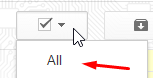
Step 2 : Now click the select check-box on top left and click all.    selct-all
Step 3: ‘Select all conversations that match this search’ will be showing at top. Click on it.

select-all-conversation


Step 4: Click more button and select mark as read.

mark-read


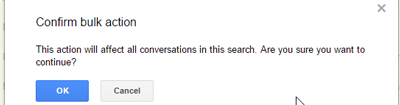
Step 5: Confirm popup message.
confirm-popup


Thats it, all you emails will be read in few seconds.

all-read

Categories How to guide, TechnologyTags gmail, mark all email as read
Post navigation
Build your own computer
Internet Security Software

Worth Reading

  • Internet Security
  • Build your own computer (Updated)
  • USB Gadgets
  • Cloud Storage
  • Increase Internet Speed
  • Track Emails in Gmail

Best Web Hosting Companies

Get Cash Back upto 70% on all hosting.

  • bluehost
  • dreamhost
  • inmotionhosting
  • siteground
  • hostgator
*I get commissions for purchases made through links in this post.*
DreamHost Flat 25 USD Discount

dreamhost 25% coupon

Domain Checker

Footer Widget 1

Replace this widget content by going to Appearance / Widgets and dragging widgets into this widget area.

To remove or choose the number of footer widgets, go to Appearance / Customize / Layout / Footer Widgets.

Recent Posts

  • Plugging USB freezes computer
  • Everything About Samsung Pay
  • VPN-Virtual Private Network: A complete guide
  • WordPress blog in 5 mins
  • Digital Payment, E-Wallets – All you need to know

Footer Widget 3

Replace this widget content by going to Appearance / Widgets and dragging widgets into this widget area.

To remove or choose the number of footer widgets, go to Appearance / Customize / Layout / Footer Widgets.

Copyright © 2026 TechnicMantra